
Smokeball setup guide
Connect Smokeball, order a notarization from a matter, and find everything Notaron adds to the matter afterwards. Step by step, with screenshots.
Before you start
- A Smokeball account hosted in the US.
- A Notaron client account. If you don't have one, sign up free with your work email. The integration is part of the client dashboard and is not available on notary accounts.
- Each person connects their own Smokeball login. One person connecting does not connect the rest of the firm.
There is no charge to connect, no subscription and no per-seat fee. You pay only when a notarization completes: $25 for one signer and one notarization, with additional signers, seals and witnesses priced per item.
What Notaron can access
When you connect, Smokeball asks you to approve these permissions. Each one is used for a step in this guide.
| Notaron can | Used to |
|---|---|
| Read your matters and the people on them | Find the matter and fill in the signer |
| Read and add matter documents | Attach the document to be notarized, and file the notarized PDF back |
| Add expenses and fees, and read your activity codes | Add the notarization to the matter, under the activity code you choose |
| Read your staff list | Assign follow-up tasks to the person who linked the matter |
| Add notes, tasks and calendar entries | Only when the matching setting is on |
| Receive Smokeball's confirmations | Confirm that an entry was added, so it is never added twice |
Notaron does not access your bills, trust accounting, emails or messages. You sign in on Smokeball's own screen, so Notaron never sees your Smokeball password. The access Smokeball grants is stored encrypted on Notaron's servers, never in your browser, and disconnecting deletes it.
Connect Smokeball
Open Integrations in your dashboard (you are asked to sign up or sign in first), then:
Sign in to Notaron and open the Integrations tab on your dashboard.
On the Smokeball card, click Connect Smokeball.
Sign in with your Smokeball username and password.
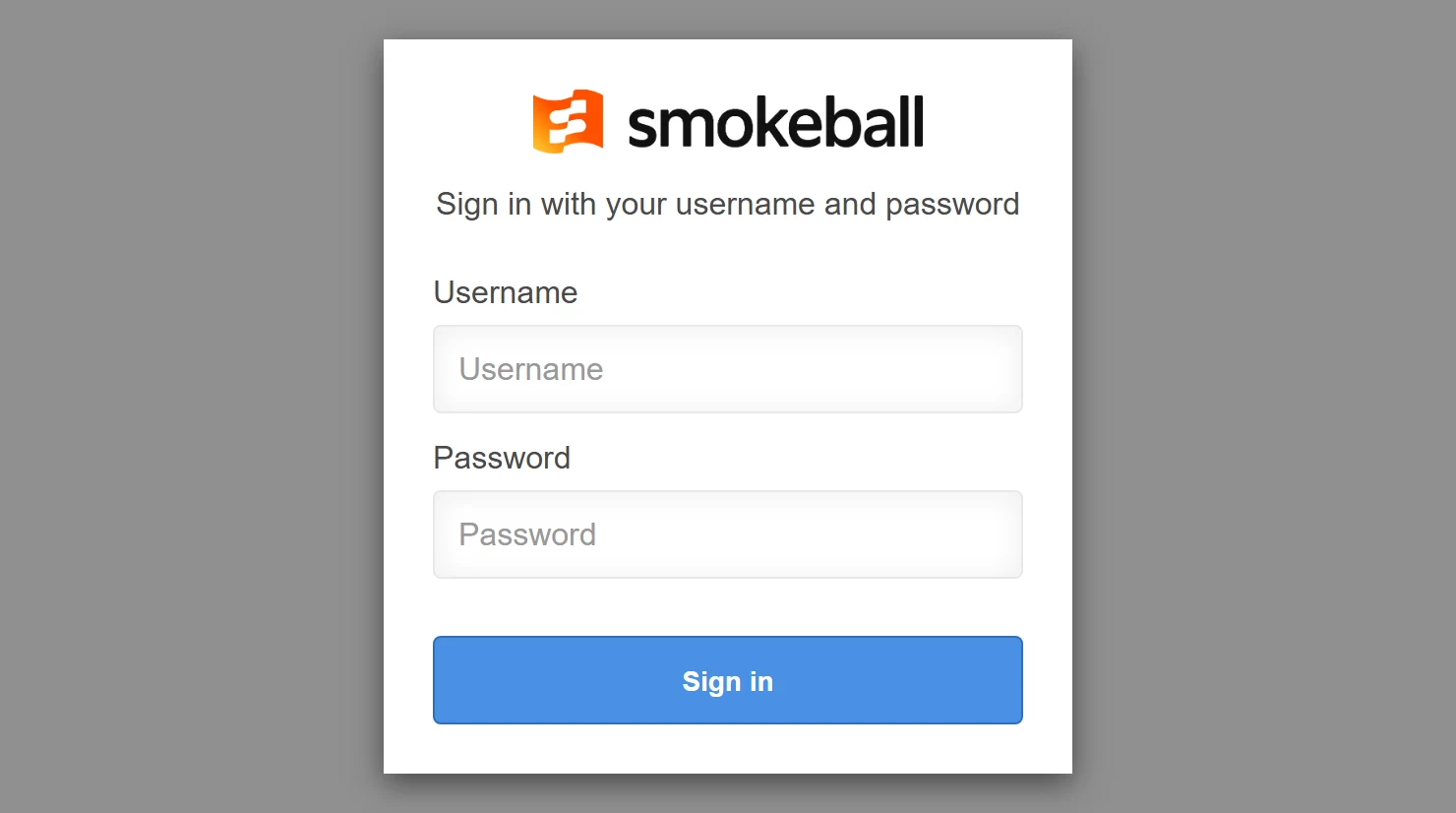
Smokeball's own sign-in screen. Notaron never sees your Smokeball password. You return to Notaron with the message Connected to Smokeball., and the Smokeball card shows Connected.
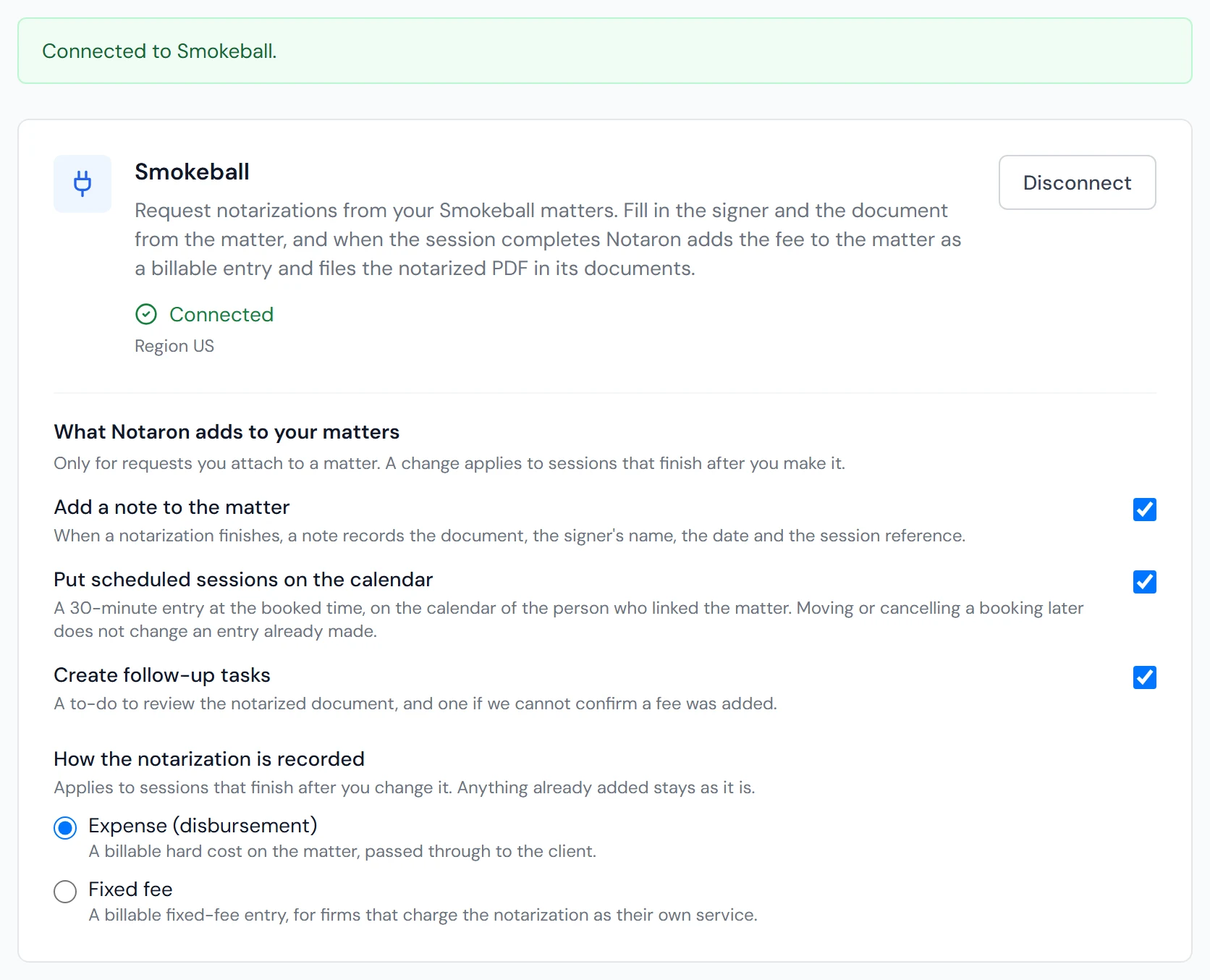
Connected. The settings below the line are covered in the next section.
Choose what Notaron adds to your matters
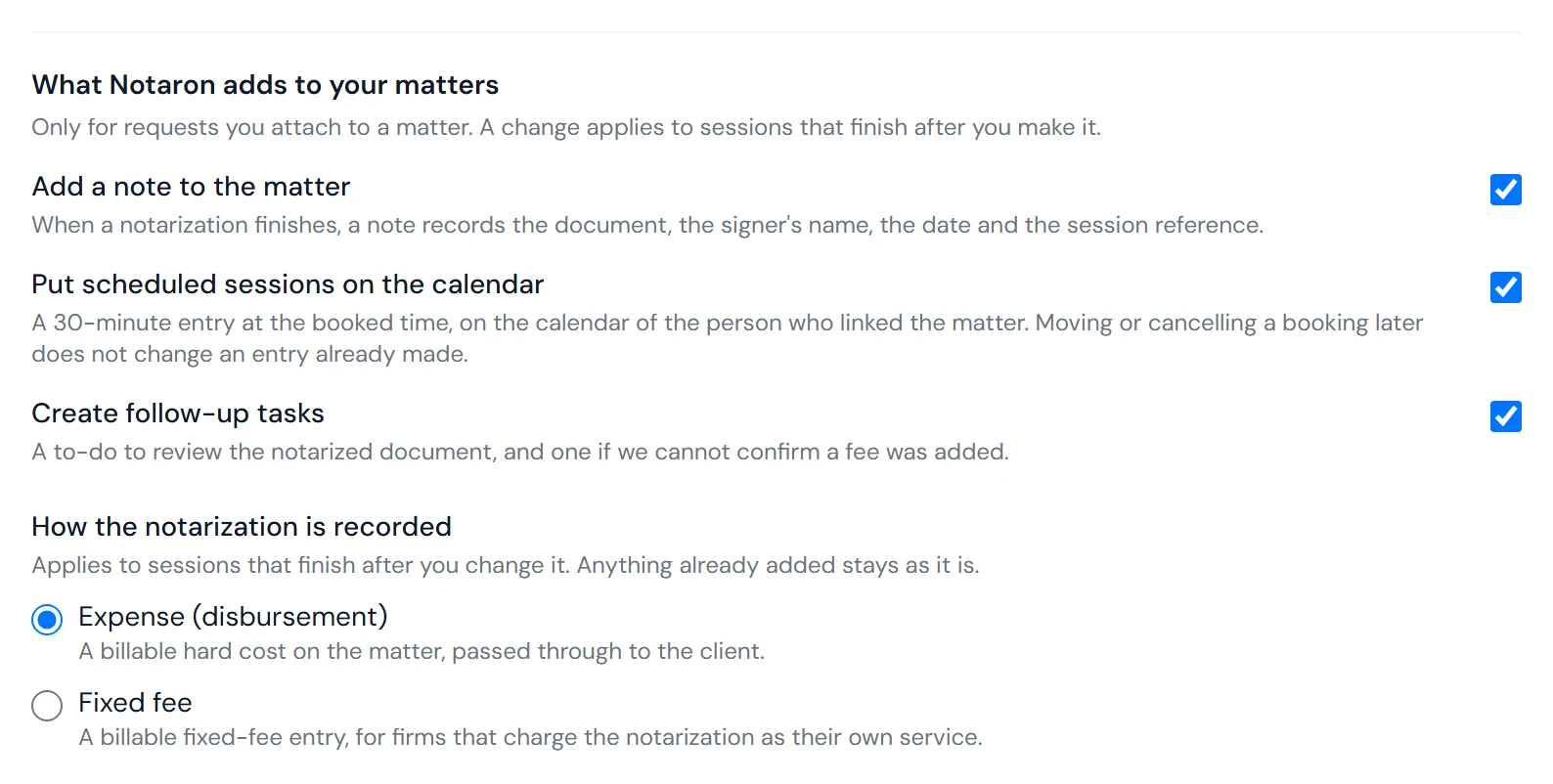
Once you're connected, the Smokeball card shows What Notaron adds to your matters. These settings apply only to requests you attach to a matter, a change applies to sessions that finish after you make it, and each setting belongs to the Smokeball login you connected.
| Setting | What it does |
|---|---|
| Add a note to the matter | When a notarization finishes, adds a note recording the document, the signer's name, the date and the Notaron session reference. On by default. |
| Put scheduled sessions on the calendar | Adds a 30-minute entry at the booked time to the calendar of the person who linked the matter. Only scheduled sessions get an entry; on-demand sessions start right away, so nothing is added. On by default. |
| Create follow-up tasks | Adds a task to review the notarized document, plus one if Notaron cannot confirm that the fee was added. Off by default. |
| How the notarization is recorded | Expense (disbursement), a billable hard cost passed through to the client, or Fixed fee, a billable fixed-fee entry for firms that charge the notarization as their own service. Expense is the default. A change affects only sessions that finish afterwards. |
| File the notarization fee under | Optional, and shown only if your firm uses activity codes. The list follows your choice above: expense codes for an expense, fee codes for a fixed fee. |
Start a new request
Sign in to Notaron. Your dashboard opens.
Click New Request in the top right.

Start every request from New Request. The New Notarization Request form opens. When Smokeball is connected, a Smokeball matter (optional) box is at the top of the form.
Connect the request to a matter
Choosing a matter is what links the request to Smokeball. Without one, the request works as usual and nothing is posted to Smokeball.
In the Smokeball matter (optional) box, type a client name or matter number and select the matter.

Matters appear as you type. Notaron lists the people and the documents on that matter.
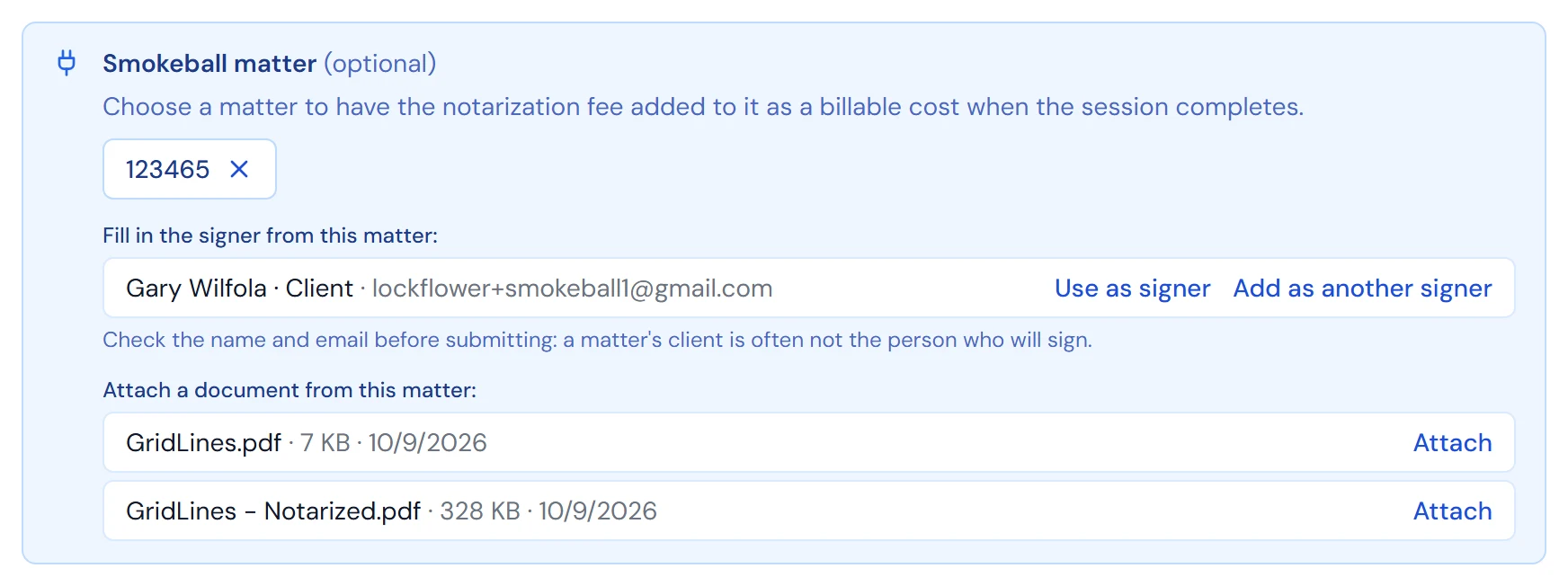
The matter's people and documents, ready to use. Under Fill in the signer from this matter, click Use as signer next to the person who will sign. To add more signers, click Add as another signer.
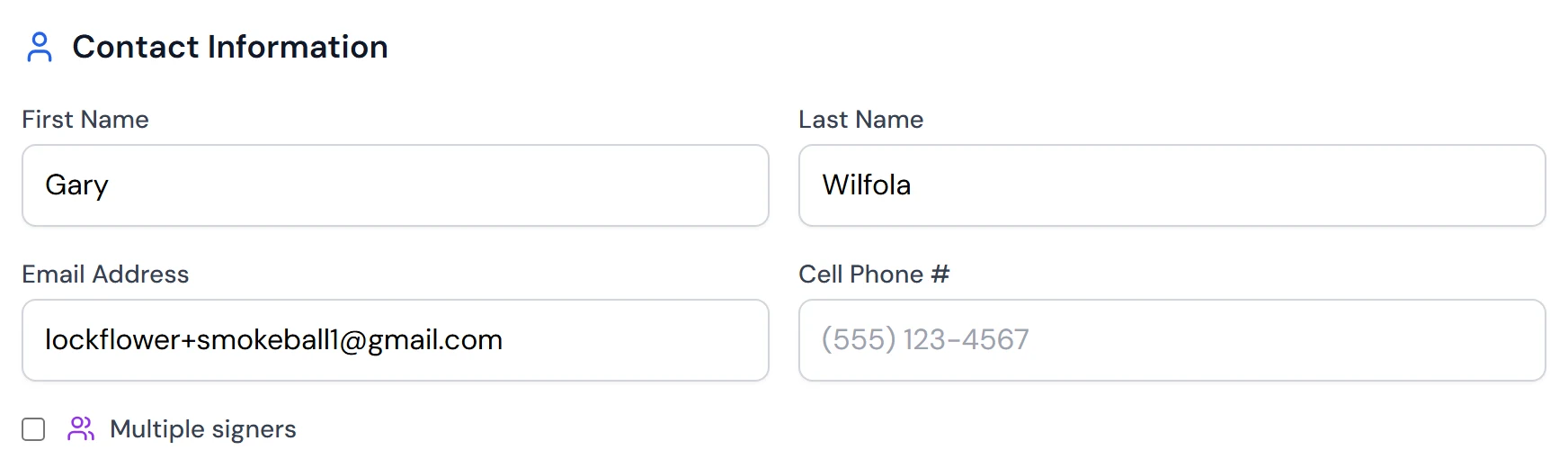
Use as signer fills in the signer's name, email and phone. A matter's client is often not the person who will sign. Check the name and email before you submit.
Under Attach a document from this matter, click Attach next to the document to be notarized. PDF, Word and image files are listed. You can also upload a file from your computer instead.
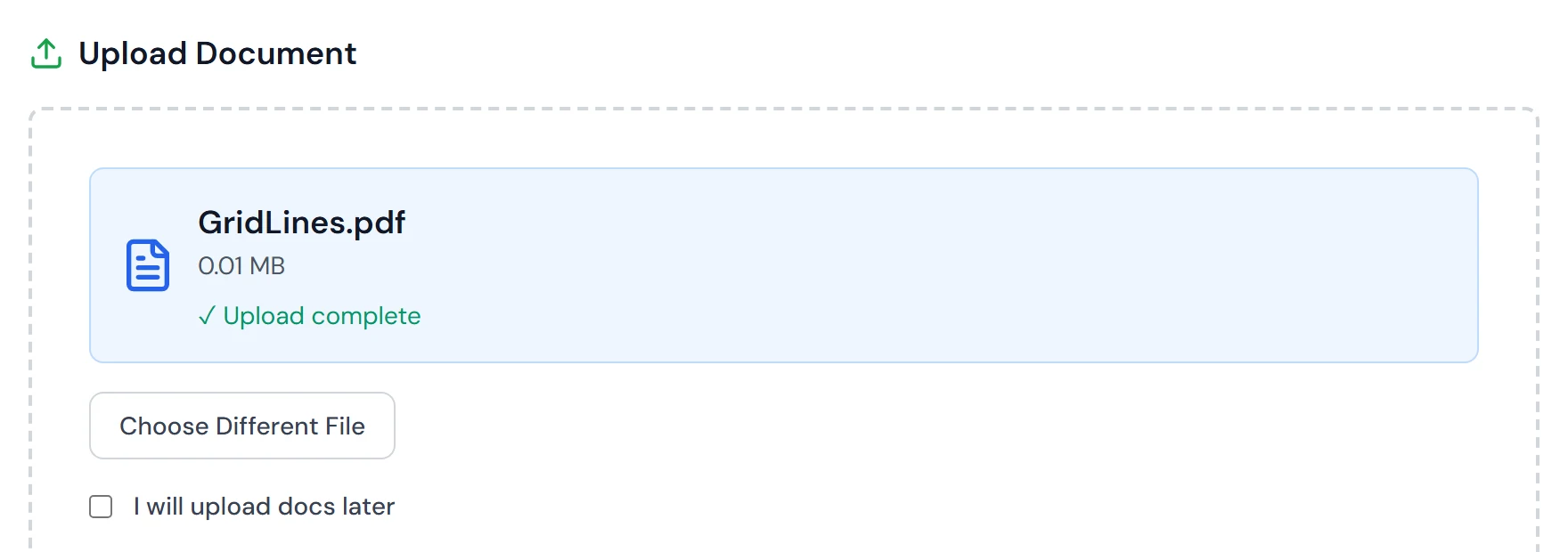
The document from the matter is attached to the request, ready for the notary. Finish the rest of the request as usual and submit it. To remove the matter before you submit, click the × next to the matter number.
See everything in Notaron
On your dashboard, open My RON Requests and find the request.
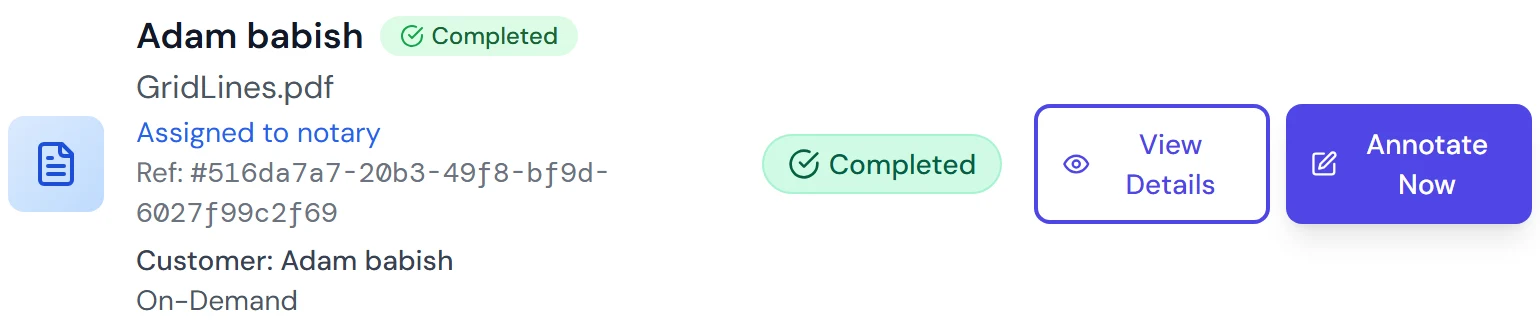
Each request shows its document, status and reference. Click View Details. A Smokeball box at the top shows the matter number and where the fee and the notarized PDF stand.

A completed request: the fee is on the matter and the notarized PDF has been filed. To download the notarized PDF, scroll to Completed Signed Documents and click Download.
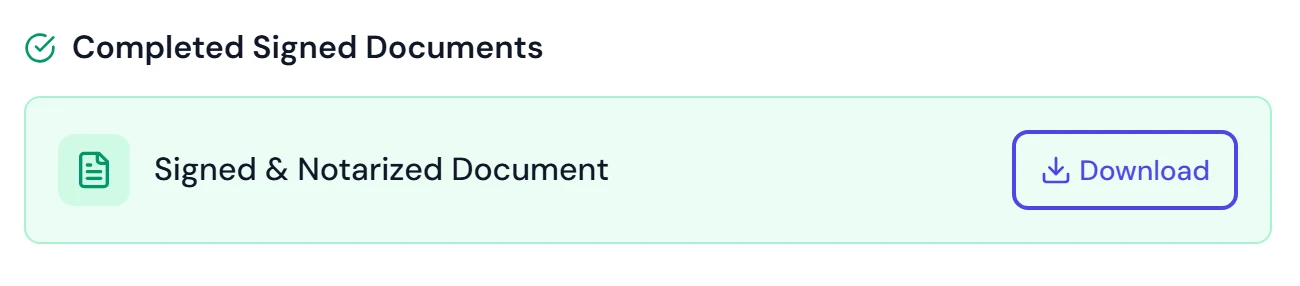
The same notarized PDF that was filed to the matter.
What each status in the Smokeball box means, for an expense or a fixed fee alike:
| Status | Meaning |
|---|---|
| Fee will be added when the session completes | The request is linked. Nothing is posted until the notarization finishes. |
| Adding the fee… | Notaron is sending the expense or fixed fee to Smokeball. |
| Fee sent to Smokeball / Fee added to the matter | The entry was sent, and Smokeball has confirmed it. |
| Fee status needs a check in Smokeball | Notaron could not confirm the result. Look at the matter's Expenses and Time & Fees tabs before adding the entry by hand, so it isn't added twice. |
| Notarized PDF sent to the matter | The notarized document is in the matter's documents. |
| Notarized PDF was not sent | Download it from Notaron and add it to the matter yourself. |
See everything in Smokeball
Open the matter in Smokeball. Everything Notaron adds is on the matter itself: the Overview tab shows the fee under Unbilled and the review task under Today's Tasks.
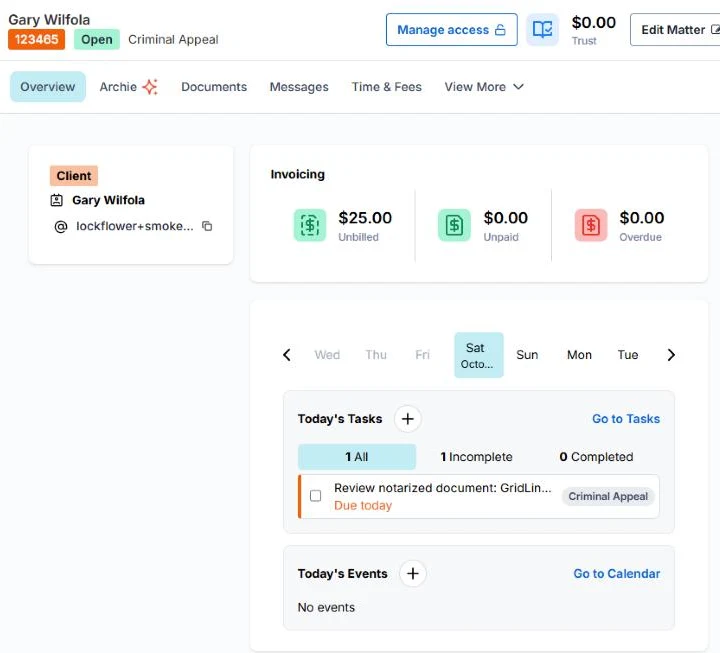
The other tabs show the details. When the screen is narrow, Expenses, Events, Tasks and Memos are under View More.
The fee. By default, open Expenses: the notarization is a billable hard cost named Notarization, dated the day the session completed. If you chose Fixed fee, it is under Time & Fees instead, with the same name, date and amount.
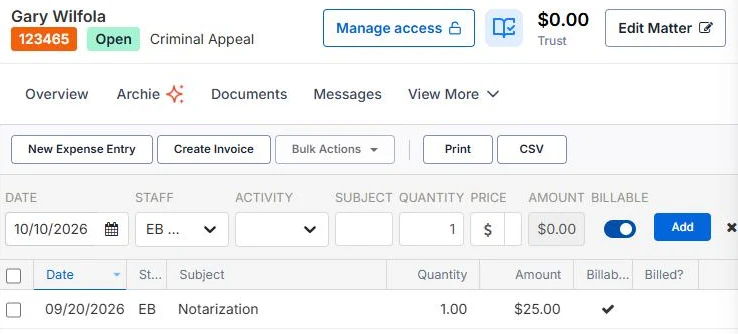
Expenses: a $25.00 billable Notarization expense. As a fixed fee. The same entry when the account is set to record a fixed fee.
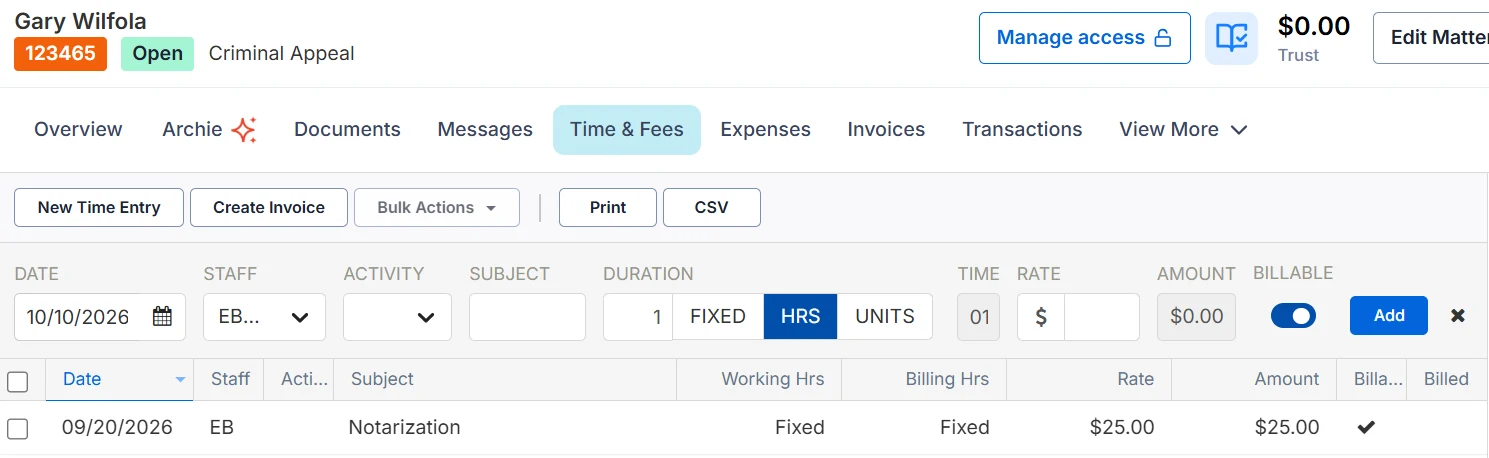
Time & Fees: the same $25.00 as a billable Fixed fee. The notarized PDF. Open Documents. The file is named after your document with - Notarized added.
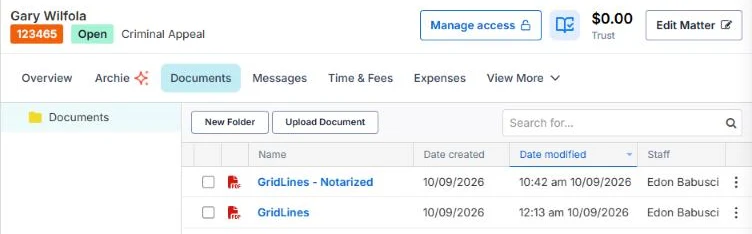
Documents: GridLines - Notarized next to the original. The note (if turned on). Open Memos. The note records the document, the signer's name, the date and the Notaron session reference.
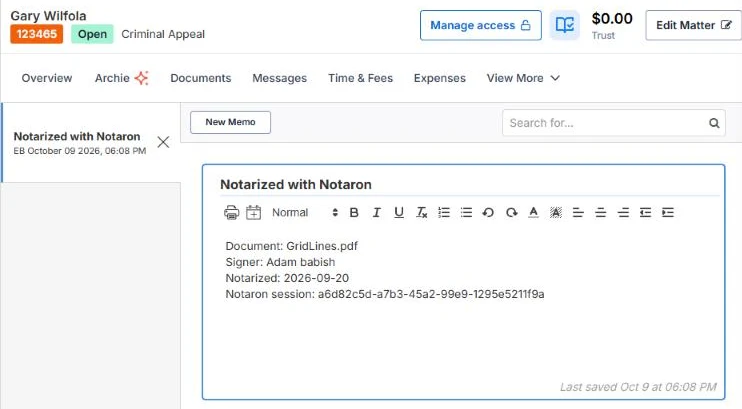
Memos: the Notarized with Notaron note. Tasks (if turned on). Open Tasks. A task to review the notarized document is added to the matter.
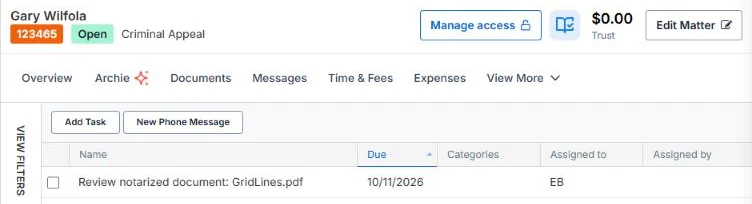
Tasks: Review notarized document, assigned to the person who linked the matter. Calendar (if turned on, scheduled sessions only). Open Events. The session appears as a 30-minute entry at the booked time.
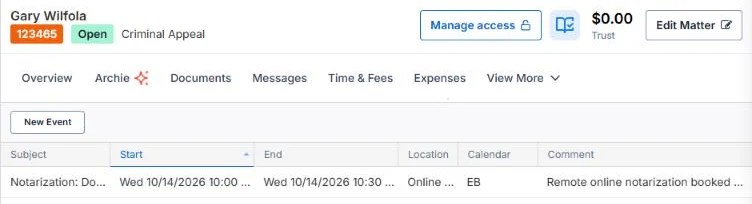
Events: the booked session, 10:00 to 10:30.
What syncs, and when
| When | What happens in Smokeball |
|---|---|
| You create a request with a matter selected | Nothing yet. Notaron reads the matter, its contacts and documents. |
| The session is scheduled (calendar entries on) | A 30-minute calendar entry at the booked time. |
| The notarization completes | A billable “Notarization” entry dated the completion date: a hard-cost expense by default, or a fixed fee if you chose that. |
| The notarization completes | The notarized PDF, named “<document> - Notarized”. |
| The notarization completes (if turned on) | A matter note, and follow-up tasks. |
What does not sync: requests you didn't attach to a matter, changes made in Smokeball afterwards, and rescheduled or cancelled bookings (an existing calendar entry is not moved or removed).
Disconnect Smokeball
Open the Integrations tab, click Disconnect on the Smokeball card and confirm. Expenses, fees, documents, notes and tasks already added to your matters stay in Smokeball, and you can reconnect at any time.
Troubleshooting
- I don't see the Smokeball matter box in New Request.
- The matter search says “No open matters found.”
- It says “Could not load your Smokeball matters.”
- Should I record the notarization as an expense or a fixed fee?
- A setting says “This needs an extra Smokeball permission.”
- Why is there a second copy of the notarized PDF in my matter?
- Can I link a request to a matter after I've submitted it?
- Is the Smokeball matter required?
Still stuck? Email support@notaron.com. For questions about your Smokeball account, contact Smokeball Support. For what the integration does and doesn't do, see the Smokeball integration overview.